Customize the Hose Assembly List format.
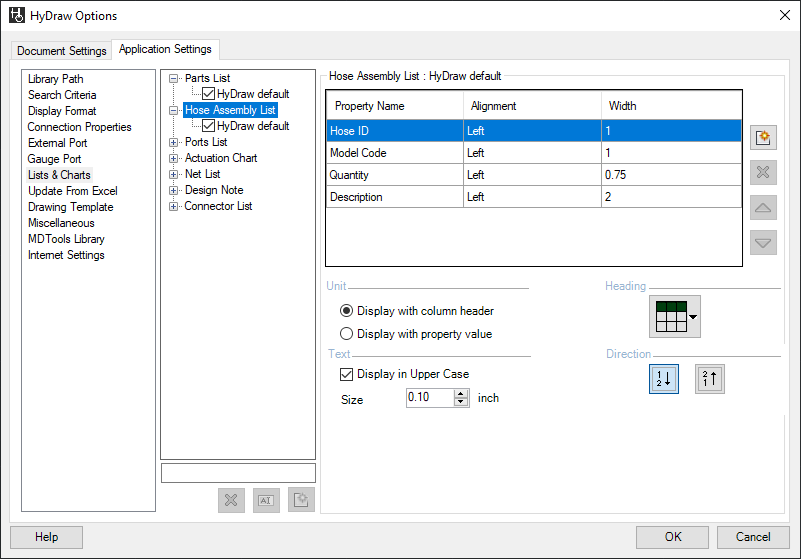
1. Click the Application Settings > Lists & Charts tab of HyDraw® Options and select Hose Assembly List.
The Hose Assembly List tab page displays.
2. To
rename a selected format, type the new name in the text box and then click
 .
.
3. To
add a new format, type the new name in the text box and then click  below
the textbox.
below
the textbox.
4. To
delete a selected format, click  below
the textbox.
below
the textbox.
5. To
move up, select the item and click  .
.
6. To
move down, select the item and click  .
.
7. To
delete a property, click .
You cannot delete the property name of the Item ID.
8. Click
to
add Hose list columns.
The Select Hose Assembly List columns checklist box displays.
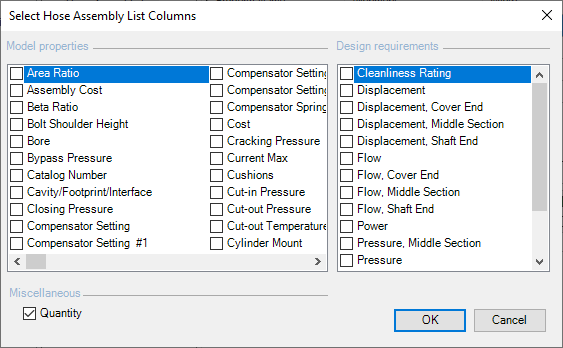
9. Select the required properties and click OK.
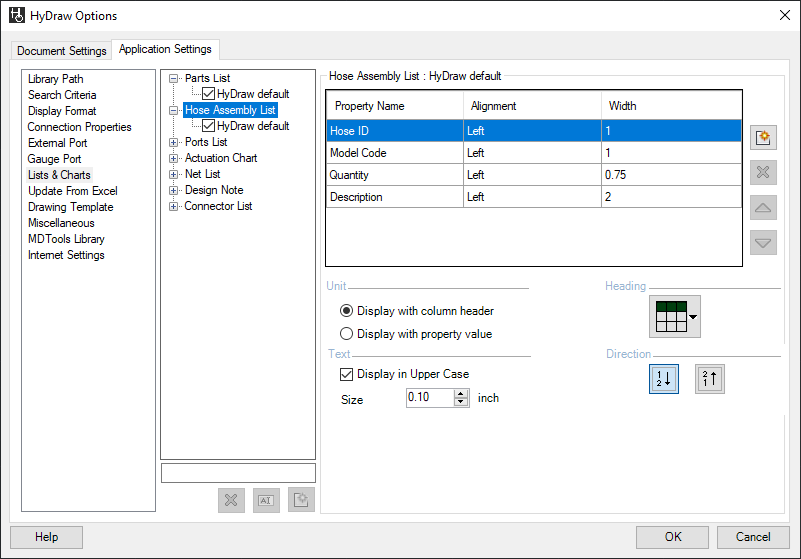
The selected properties are displayed in the Hose List tab page- Configure columns.
Unit: The Display with column header option shows the
unit in the column header of the parts list column.
The Display with property value option shows the unit with the property
value of each row.
Text: The Display in Upper Case option shows the list in the upper case. Also, you can change the text size of the list.
Heading: The Heading drop-down selects the list header direction. For example, top, bottom or none.
Direction: Sort the list in an ascending or descending order.
10. Click OK.
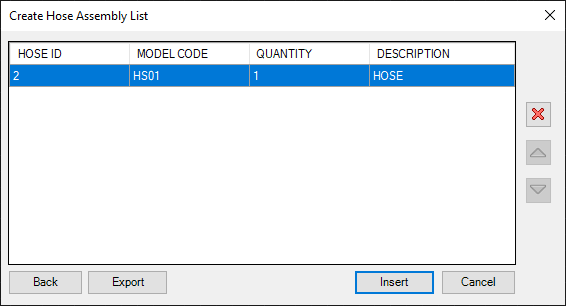
The selected properties are displayed in a tabular form when the Hose list is created in the drawing.
Note:
To learn more about Hose List, refer Create and Insert Hose List.