 on the HyDraw® CAD ribbon menu.
1. Click System >
Hose Assembly
List on the HyDraw® CAD ribbon menu.
The Select Hoses prompt displays.
2. Select a single or multiple hose. After the completion of selection, press the Enter key.
The Create Hose Assembly List dialog box displays.
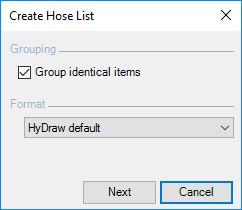
3. Select the Group identical items check box to group all identical items in the Hose Assembly list.
Group identical items works only for the given numbering scheme in Option.
4. Select the required format. If no format is selected, then the default format is applied.
5. Click Next to display the Create Hose Assembly List dialog box.
The Create Hose Assembly List dialog box displays the details of the hose properties.
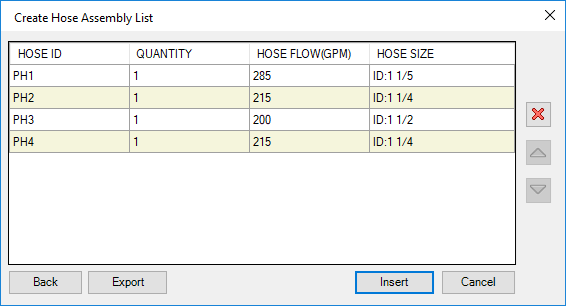
6. Click
 or
or
 to
move the selected item row up or down, respectively.
to
move the selected item row up or down, respectively.
7. Click
 to
delete the selected hose from the list.
to
delete the selected hose from the list.
8. Click Insert to insert the hose list as a separate list in the drawing.
9. Select an area to create the Hose Assembly list.
Specify first corner: prompt displays.
10. Specify the first corner.
The Specify opposite corner: prompt displays.
11. Specify the opposite corner.
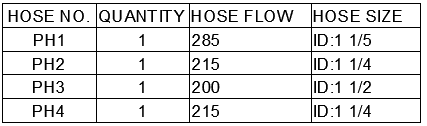
The Hose Assembly list is inserted into the drawing in a tabular form.
12. To save the Hose Assembly list as an Excel sheet, click Export.
The Hose Assembly list is saved in the Excel format.