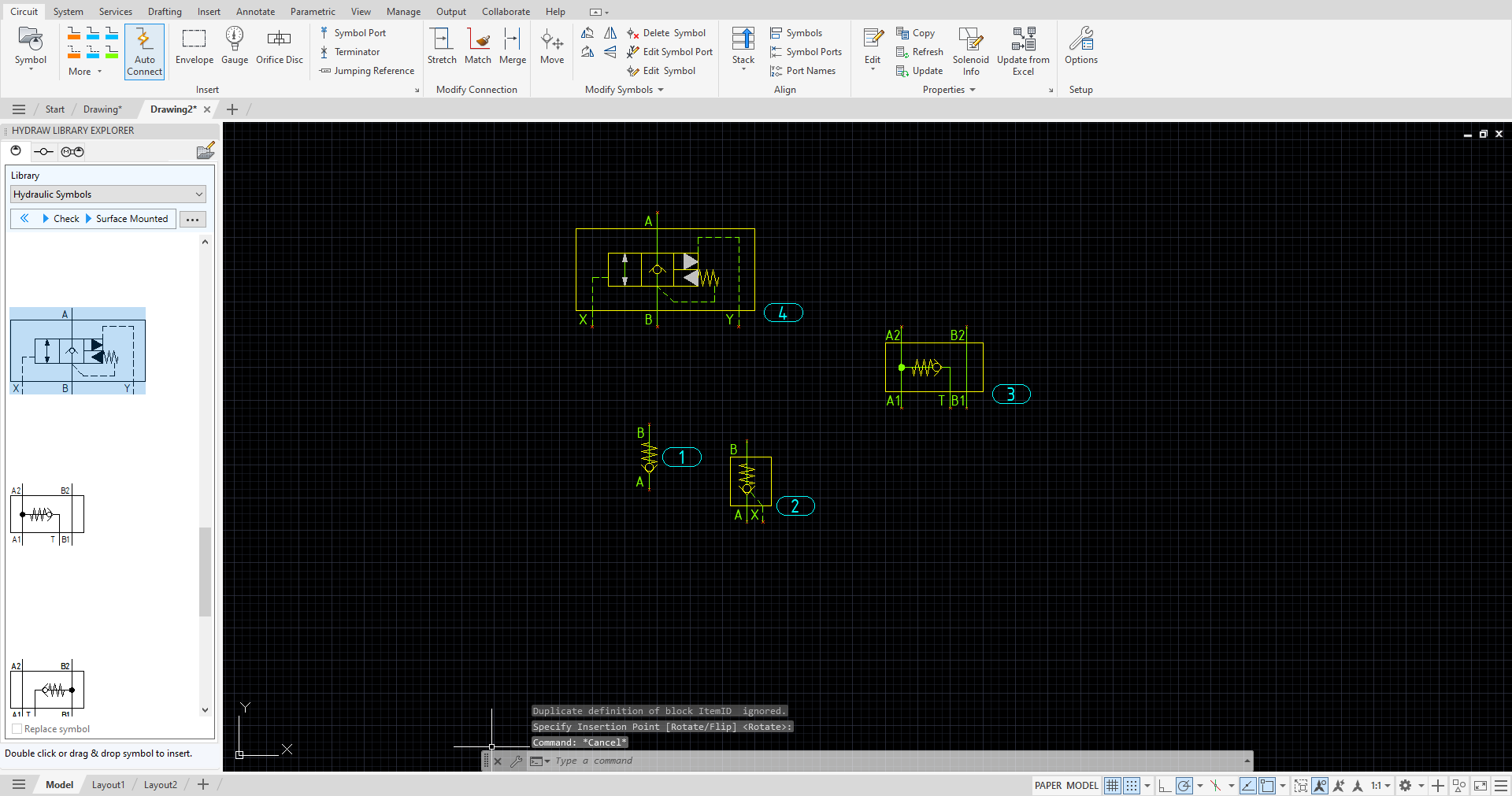
Insert symbols from Parts List in Excel.
Note: Each item in the Parts list is identified by its unique model code. Therefore, Parts list must contain a model code for each item in the list.
1. Select Circuit > Symbol>From Parts List on the HyDraw® CAD ribbon menu.
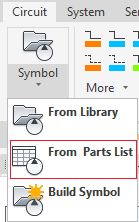
The Insert Symbol from Parts List dialog box displays.
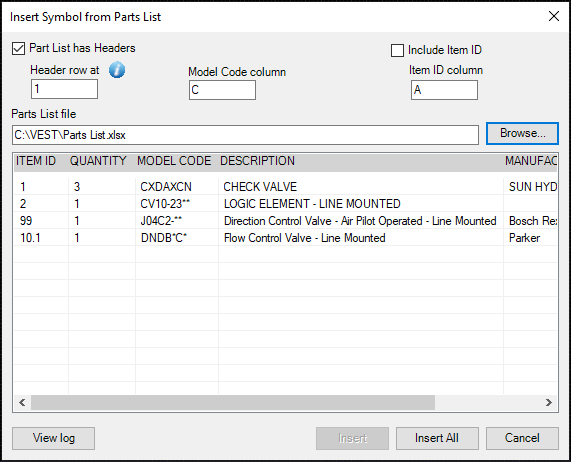
2. Enter the Part list Header row at option and the Model Code column number.
3. Enable the Include Item ID checkbox if you want to use item Id in the part list.
Examples:

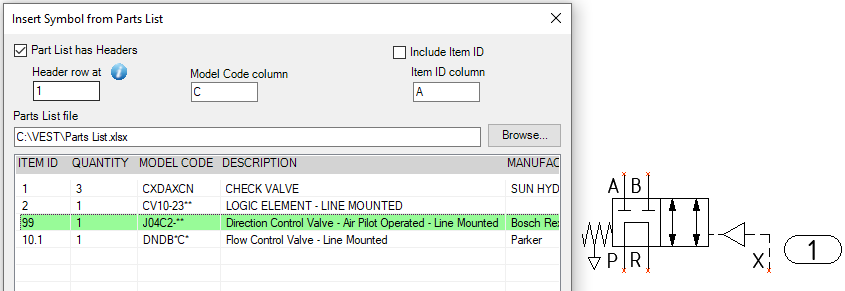
HyDraw will auto-assign Item IDs using a numeric or alphabetic sequence based on the current settings.

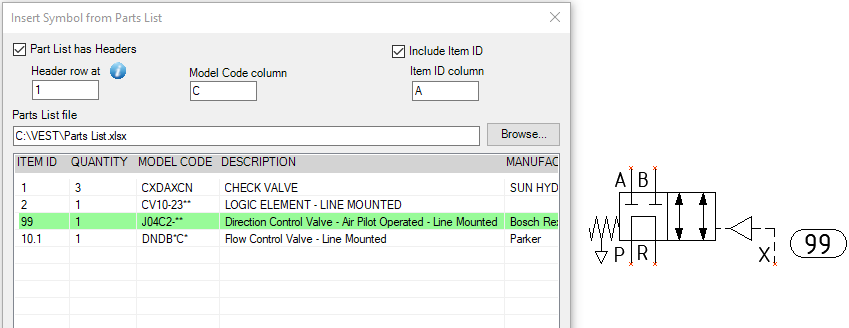
HyDraw uses the Item ID values directly from the Excel parts list
3. Click Browse...
The Select Parts List Excel file dialog box displays.
4. Select the required Excel file containing the Parts list and click Open.
Contents of the Excel file are displayed.
5. Type Model Code column number in the text box, if it is not automatically entered.
6. Select the models and click Insert or Insert All to insert all the symbols in the drawing.
Linked Symbols dialog box displays when multiple symbols are linked to the selected model.
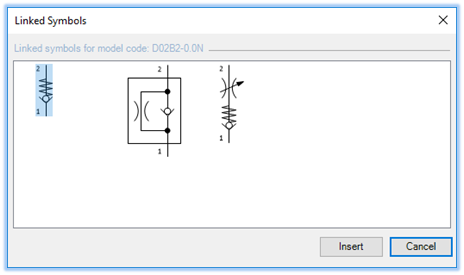
7. Symbols inserted from a parts list will have model properties filled and identified as a component directly.
8. Insert same symbol from Parts list groups the symbols based on the options set for Item ID in HyDraw Options.
9. Inserting a symbol over the connection line splits the connection line.
Refer Insert symbol over connection line.
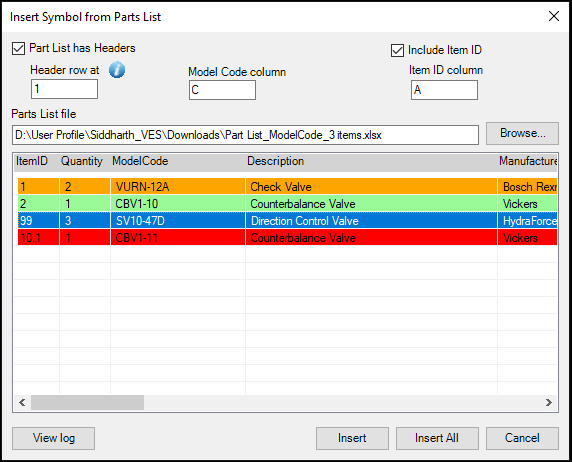
10. When the correct quantity is not inserted, the row will be shown in orange color. When the correct quantity is inserted, the row will be shown in green color. If the symbol is not linked to model data, the row will be shown in red color. The selected row will be shown in blue color.
Note:
· Copying and Inserting HyDraw symbols in the drawing is based on the automatic naming and smart grouping of Item IDs set in HyDraw Options.
· Mirroring a schematic or a portion in the drawing is based on the automatic naming and smart grouping of Item IDs set in HyDraw Options.
· For ISO Numbering scheme, the first item ID is manually provided by double clicking the Item ID or the HyDraw Property Manager.
· HyDraw CAD stores the prefix and generates automatic Item ID based on the last used ID.