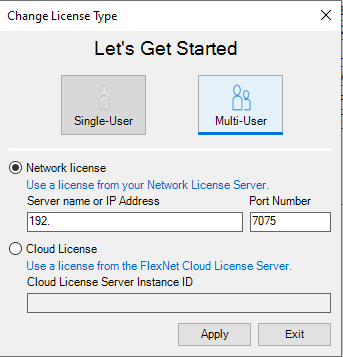
The HyDraw® client machines can use a network license available from the HyDraw License Server Manager.
1. Double click the HyDraw® CAD 2026 desktop icon.
The HyDraw CAD 2026 Change License Type dialog box displays.
Alternatively select,
Start menu > HyDraw CAD 2026 > HyDraw CAD 2026 License Settings
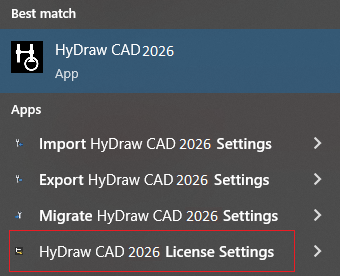
The HyDraw CAD 2026 License Manager dialog box displays.
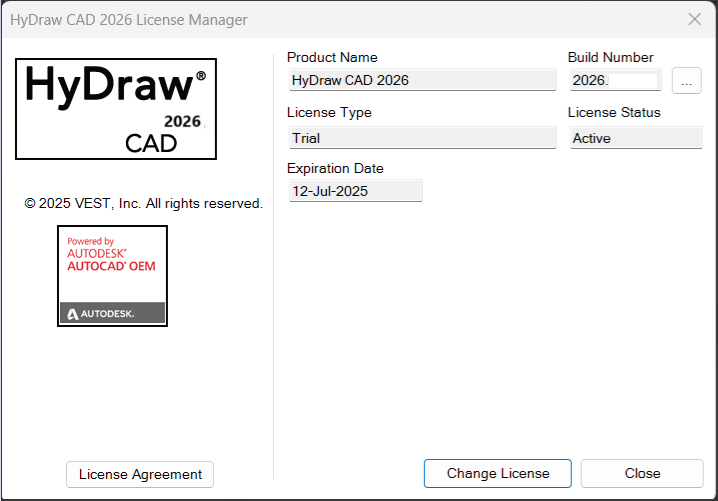
3. Click Change License
2. Select the Network license option.
4. Set the License Server Name/IP Address and Port number.
5. Click Apply.
1. Select the Borrow until date.
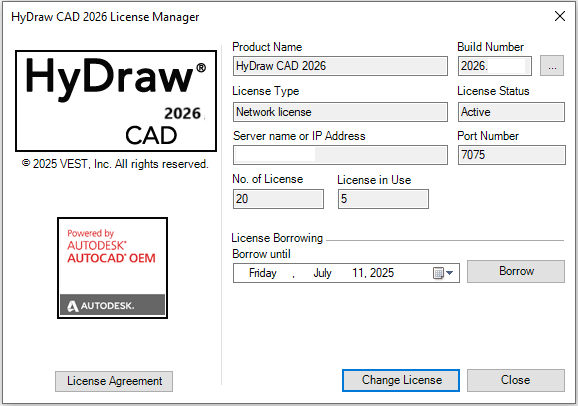
Alternatively select,
Start menu > HyDraw CAD 2026 > HyDraw CAD 2026 License Settings
The HyDraw CAD 2026 License Manager dialog box displays.
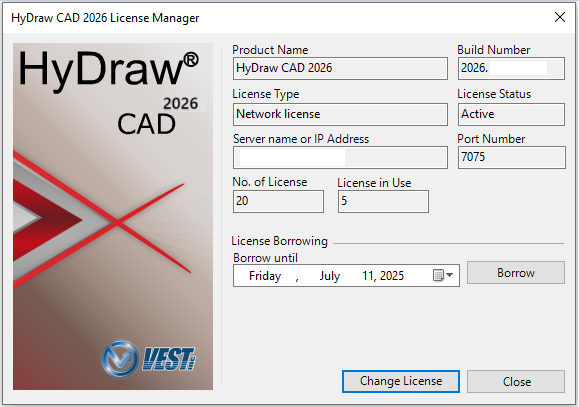
2. Click the Borrow button.
The Borrowed license details are displayed in the grid.
3. Click Close to exit.
Note:
Refer, HyDraw License Details.