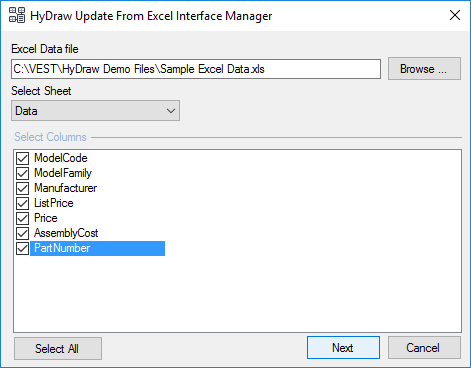
Configure the Excel data settings XML file through this utility. This is an admin utility and only the administrator can use this configurator.
1. Run the HyDraw Update From Excel Interface Manager Start > All Apps > VEST > HyDraw Update From Excel Interface Manager.
The HyDraw Update From Excel Interface Manager dialog box displays.
2. Select the Excel file by clicking the Browse button.
All columns of the selected sheet populates in the data grid.
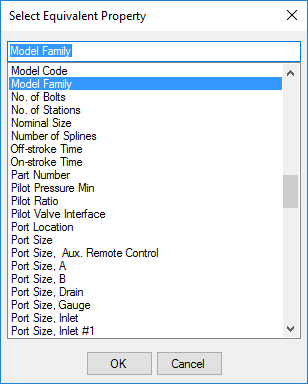
3. Select columns to include in the ERP Data settings XML and click Next.
The map properties data grid populates.
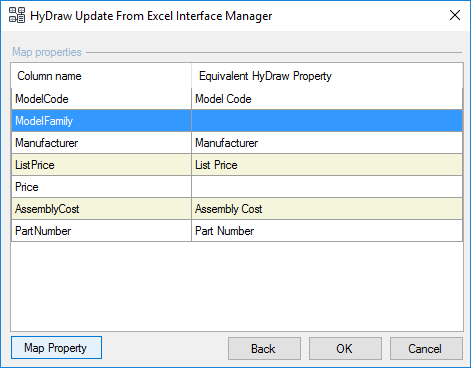
Automatically, the equivalent HyDraw properties will be assigned based on the Column name of the Excel file.
4. Manually map the unassigned property using the Map Property button.
5. Click the OK button after assigning all the properties.
6. Click the Map Property button to select the equivalent HyDraw property.
7. Click OK to assign the equivalent HyDraw property.
The data is stored in the XML file saved in the same location as the Excel data file.
The XML file is named, ERPServiceConfiguration.xml.