There are multiple ways to import data from previous HyDraw Library Manager setups.
The easiest method to import from previous libraries is to simply map to the prior library location within the Settings of the HyDraw Library Manager.
Additionally, the following steps can import everything to a new library location:
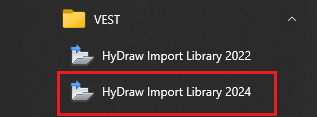
1. Select the Windows button and navigate to the HyDraw Import Library 2022 application located within the VEST folder.
The HyDraw Import Library Dialog appears.
2. Select Browse…. and navigate to the source library.
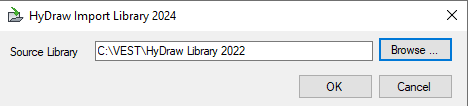
The Browser For Folder dialog box displays.
3. Click OK.
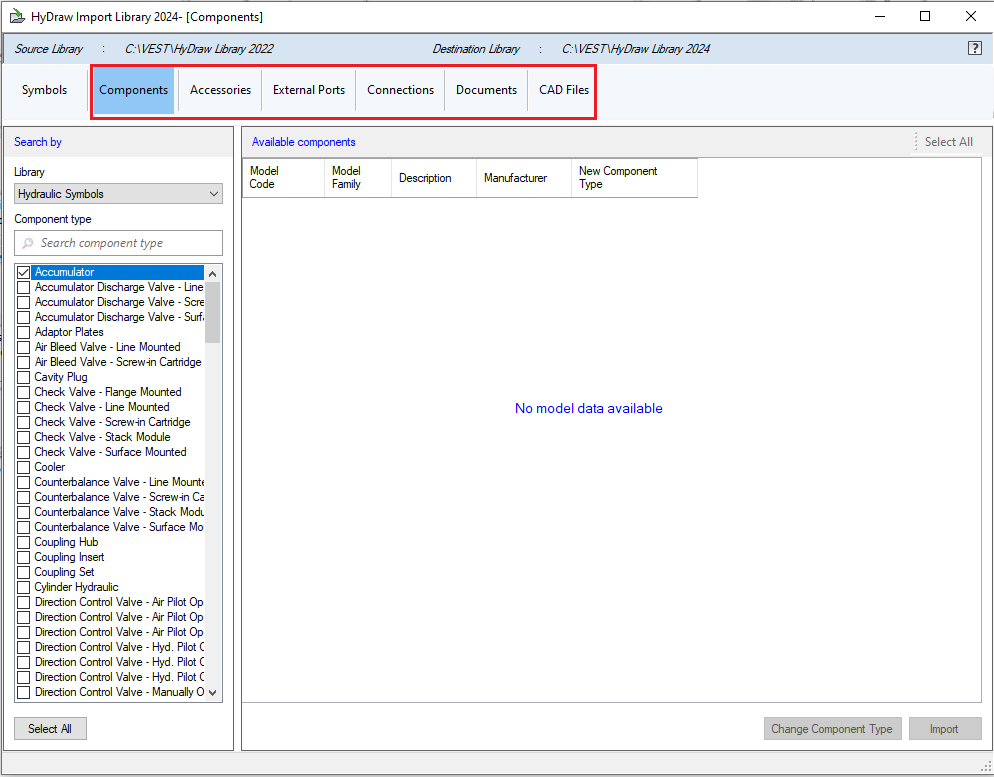
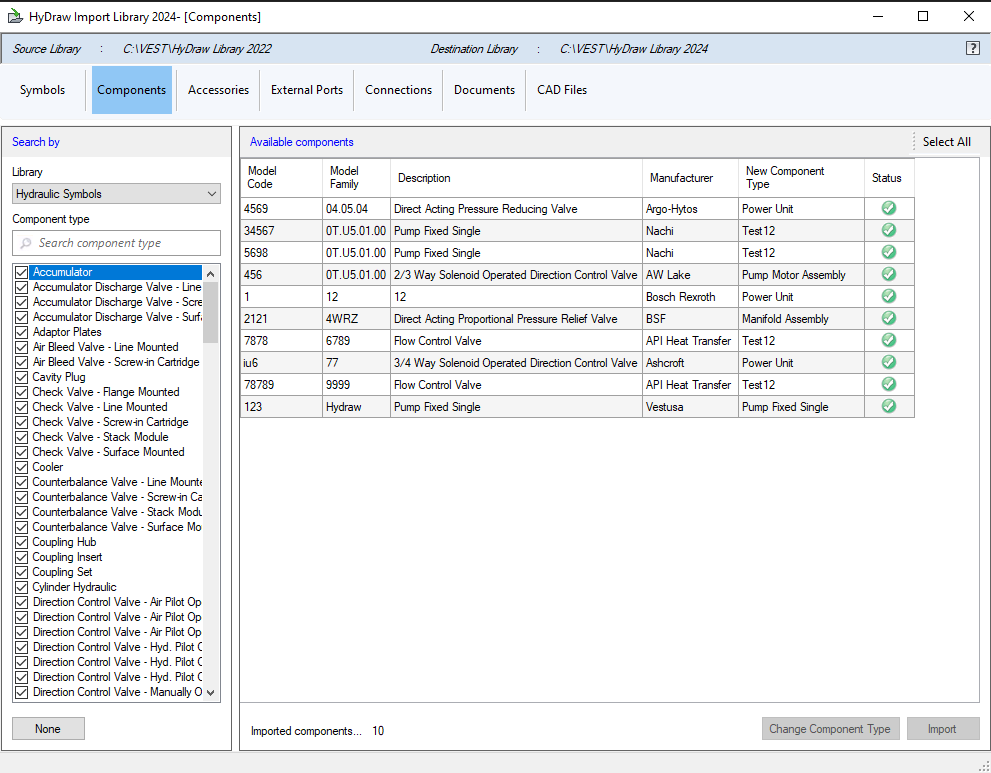
4. Select the type of data or symbols to import to the destination library from the tabs located at the top of the dialog.
5. Select the desired data folders to import Or click on Select All to select all data.
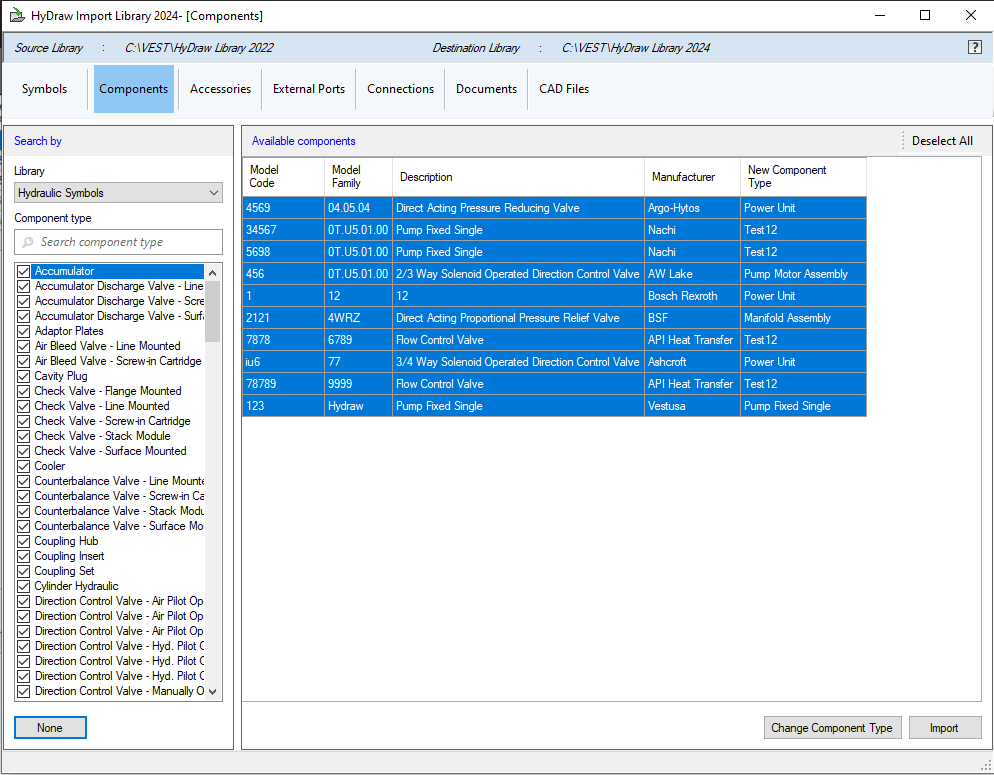
6. Select Import.
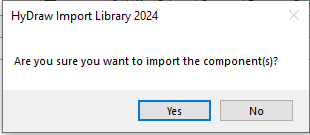
7. Click Yes or No (As per your requirement)
Status will shows a green tick when data imported successfully and will show red cross if unsuccessful.
Note:
The HyDraw Library Import Tool is not compatible with MS SQL databases.
All tabs follow this same structure except the Symbols tab