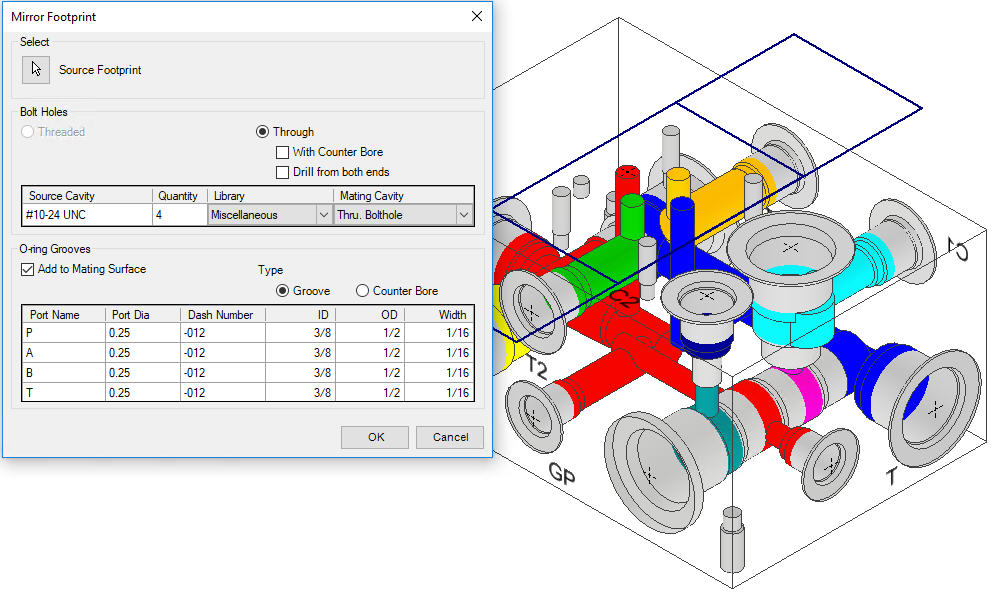
Insert mirror copy of selected footprint on mating manifold.
1. MDTools 790 ribbon > Insert panel > Copy drop-down > Mirror Footprint
The Mirror Footprint dialog box displays.
2. Click Source Footprint to select the footprint you want to mirror/copy on mating manifold.
MDTools automatically selects the Bolt Holes options in the dialog box.
Selected Footprint has
§ Threaded bolt holes
§ Through bolt holes
MDTools automatically selects the Through option from the Bolt Holes section in dialog.
The library and mating cavity is selected considering the existing bolt holes Step0 diameter.
· For MM block:
Selected (Mating Cavity) BH Step0Dia =
Minimum BH step0 diameter available in the diameter range of existing (Source Cavity) BH Step0Dia
+ 0.5 mm to existing (Source Cavity) BH Step0Dia
+ 2 mm in MDTools library.
· For INCH block:
Selected (Mating Cavity) BH Step0Dia =
Minimum BH step0 diameter available in the diameter range of existing (Source Cavity) BH Step0Dia
+ 0.019 inches to existing (Source Cavity) BH Step0Dia
+ 0.079 inches in MDTools library.
Once the Through option is selected then only Through bolt holes are available for mirrored footprint.
1. Select Through and With Counter Bore options.
Only Through bolt holes with counter bore will be available for mirrored footprint.
Drill from both ends is selected by default when With Counter Bore is selected.
Then, MDTools inserts a Through bolt hole with counter bore on opposite face and a Through bolt hole on selected face of equal lengths.
Diameter of Through bolt holes for selected face is same as the last step of selected Through hole with counter bore in dialog.
2. Select Through and Drill from both ends options.
Then, MDTools inserts bolt holes as two separate bolt holes, which are inserted from both the faces (Selected face and opposite of selected face) of the mating manifold of equal lengths.
MDTools automatically selects the Threaded option, which is also available for selection.
The library and mating cavity is selected considering the existing bolt holes Step0 diameter.
· For MM block:
Selected (Mating Cavity) BH Step0Dia =
Maximum and less than the existing (Source Cavity) bolt hole Step0Dia
– 0.5 mm’ BH available in MDTools library.
· For INCH block:
Selected (Mating Cavity) BH Step0Dia =
Maximum and less than the existing (Source Cavity) bolt hole Step0Dia
– 0.019 inch’ BH available in MDTools library.
Once the Threaded option is selected, then only threaded bolt holes are available for mirrored footprint.
If the Through option is selected, then Through hole cavity, which is present in the source manifold, is automatically selected for mirror footprint.
Also, Library and mating cavity cannot be altered.
3. Select Through and Drill from both ends.
MDTools inserts bolt holes as two separate bolt holes inserted from either side (Selected face and opposite of selected face) of the mating manifold of equal length.
4. Select Through and With Counter Bore.
Only Through bolt holes with counter bore is available for mirrored footprint.
Drill from both ends is selected by default when the With Counter Bore option is selected.
MDTools inserts a Through bolt hole with counter bore on opposite face and a Through bolt hole on selected face of equal length.
Diameter of Through bolt holes for selected face is same as the last step of the selected Through hole with counter bore in dialog.
5. Select Add to mating Surface.
MDTools automatically insert O-rings in the mirror footprint.
Add to mating surface option is selected by default.
MDTools lists only those cavities which do not contain O-ring in the source footprint to add an O-ring in the mirror footprint.
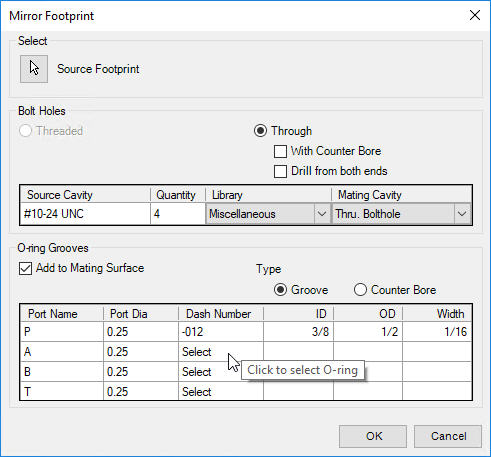
O-ring Grooves Section
1. Select the O-ring Type option, Groove or Counter bore.
2. Click on a row to select an O-ring for the listed port.
Select O-ring dialog box displays.
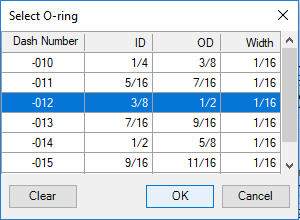
3. Select/Modify/Remove the selected o-ring and click OK.
4. Click OK in the Mirror Footprint dialog box.
Specify Footprint Location dialog box displays.
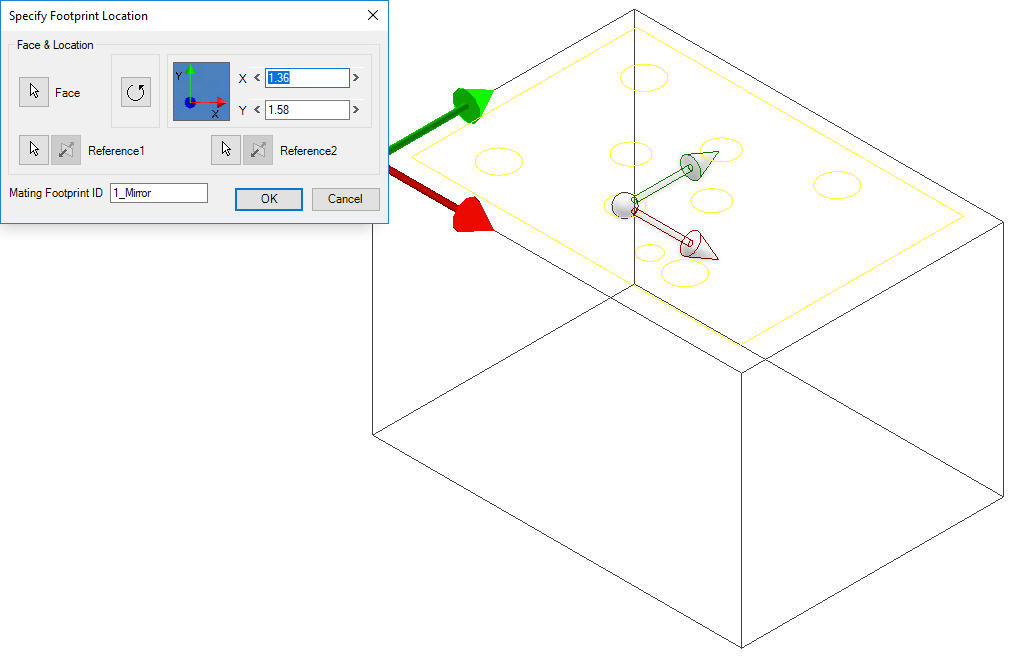
5. Select the point on the mating manifold, where you want to mirror the footprint.
MDTools displays a preview with center point and X - Y axis arrow indicator of the selected footprint at the selected point on the manifold.
6. Enter the X and Y distance from the block origin, if required.
7. Drag the center point to the footprint on any axis, if required.
8. Drag the X or Y axis arrow to move the footprint along a single axis, if required.
9. Click OK.
MDTools mirrors the footprint at the selected location on the mating manifold with O-ring to the port, if specified.
Notes
· If there is no cavity found in the specified range, MDTools does not automatically select any cavity in the ‘Mating Cavity’ column.
· MDTools stores last used library.
· All Through bolt holes or Through bolt holes with counter bore on opposite face of mating manifold are separate cavities, not part of a footprint, although these cavities are constrained with footprint child cavities.
· The Delete/Suppress command cannot delete/suppress the Through bolt holes on opposite face of mating footprint.
· \Move, align and rotating mating footprint automatically moves and rotates the Through bolt holes/Through bolt holes C’bore on opposite face.
· If there is any suppress cavity/port in the source footprint, then MDTools does not suppress the same cavity in mirrored footprint.
· MDTools does not allow to create a mirrored footprint on source manifold.
MDTools displays validation message when creating a mirrored footprint on source manifold.
· If there is a dowel pin in source footprint, MDTools simply mirrors the dowel pin hole.
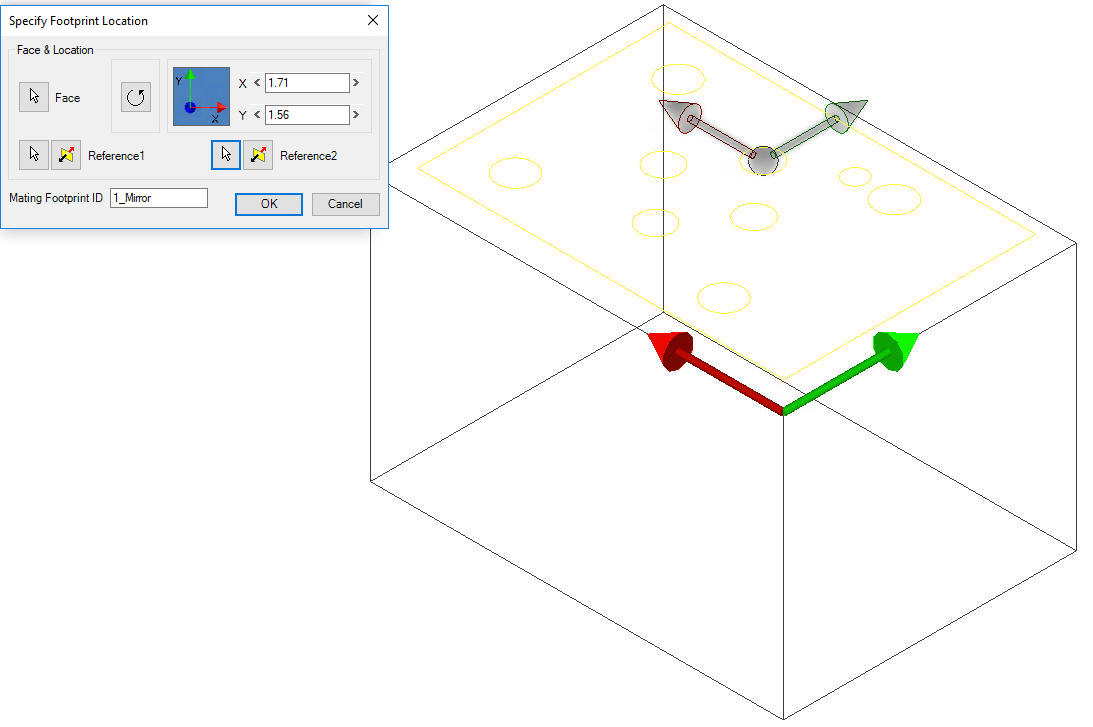
1. Click the selection button for Reference1.
2. Select an edge or an existing cavity.
MDTools automatically relocates the origin symbol to the selected reference and updates the X and Y values as per the new origin.
Note
· Click the selection button for Reference2 when you want to change the reference of both the X and Y axis.
· Click the Flip button to change the direction of the axis. This flips the cavity location when a cavity is used as a reference.
3. Change the X and Y values to precisely position the new footprint.
MDTools automatically updates the preview of footprint upon changing the X and Y values.
4. Enter Mating Footprint ID.
5. Click OK to create a footprint at the specified location.
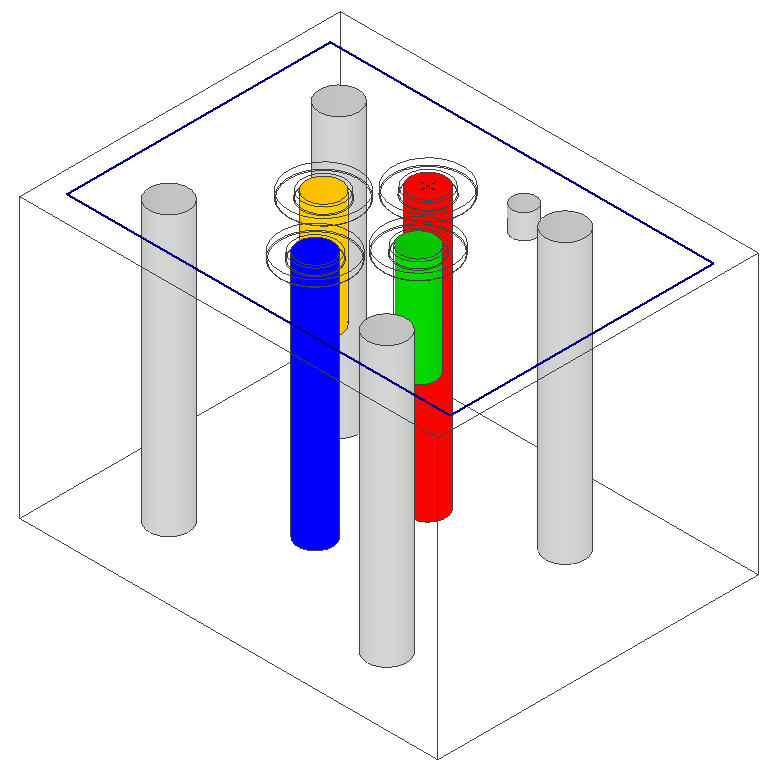
Mating Manifold
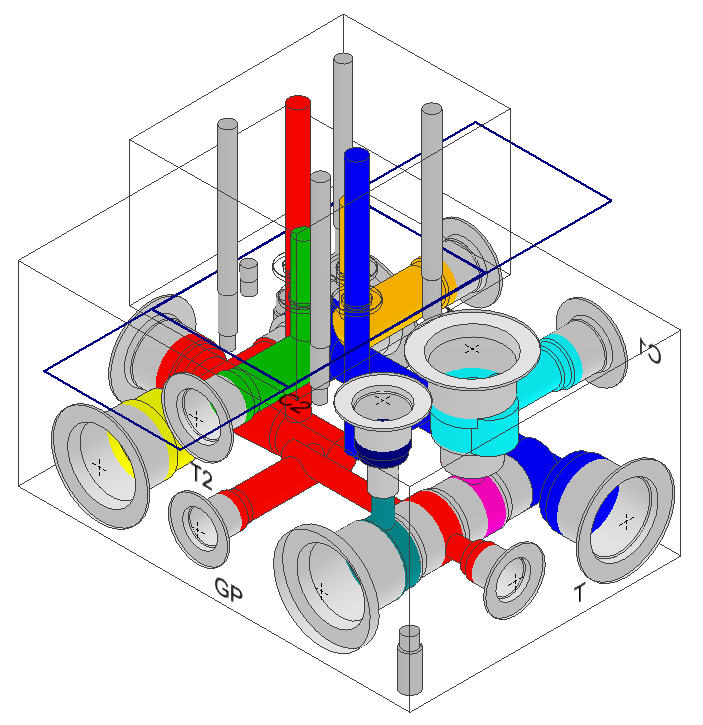
After Mating with source manifold