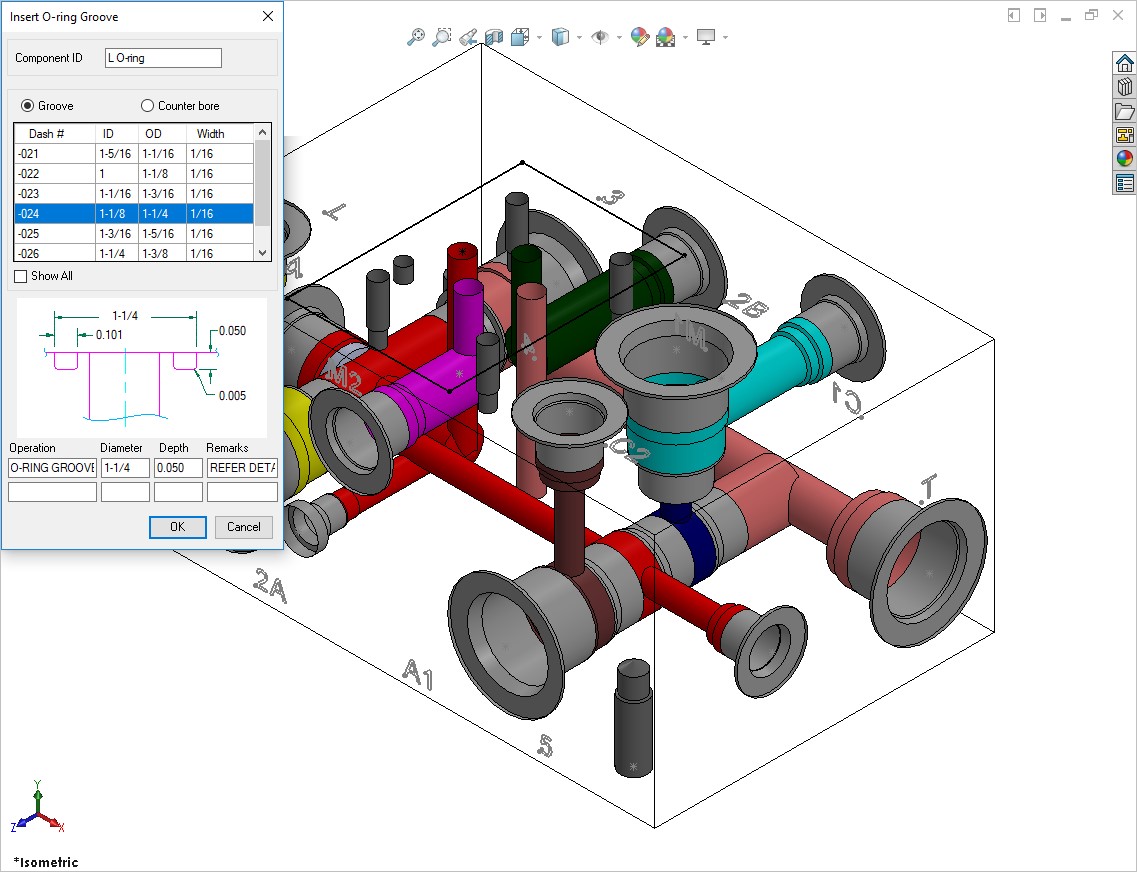
Insert O-ring Groove
O-ring grooves are created around the blind holes of footprints on the manifold surface to fit O-ring seals to make these holes leak proof. This section shows how such cavities are modeled using MDTools® 985.
Insert O-ring grooves on a selected cavity, according to the specification provided in the Insert O-ring Groove dialog box.
1. MDTools 985 > O-ring Groove
The MDTools Select Cavity dialog box displays.
2. Select the cavity in which you want to insert the O-ring groove.
The Insert O-ring Groove dialog box displays.
3. Modify component ID, if required.
Component ID of O-ring defaults to Component ID of selected cavity with text “O-ring” as suffix.
4. Select the O-ring size to automatically specify the groove dimensions.
5. Click OK.
MDTools automatically creates a groove to the specification.
Note:
Add machining details, such as operation, tool name, diameter, and depth with O-ring.
The O-ring machining information is displayed in the drawing sheet via the machining chart.
O-ring data is stored in MDTools Cavity Library.
Use $Step for diameter and depth fields. Actual value of these will be displayed in machining Chart.
$Step in diameter field will display the outer diameter of Oo-ring groove in Machining Chart.
$STEP for depth is measured from the surface of the manifold in the Machining Chart.
Select Show All, to view all the O-ring grooves available in the library.
MDTools automatically creates a groove when inserting a cavity, if an O-ring is attached to that cavity in MDTools Library.
Modify the Component ID of an O-ring only if Independent of Parent ID option is selected in MDTools Settings -> Miscellaneous tab.
If Independent of Parent ID is selected, MDTools considers O-ring Groove as a separate item in the following commands:
- Machining ID
- Component ID
- Machining Callout
- Machining Chart
- Balloon
MDTools filters O-rings by Outer Diameter as default at the time of loading dialog and lists O-rings with Inner Diameter greater than Cavity STEP0 Diameter and Outer Diameter less than or equal to (Cavity STEP0 Diameter + 0.5 inch/12.7 mm) if Show All option is not selected.