
Add Library
1. MDTools Library Manager ribbon > Cavities > Manage Libraries
The Manage Libraries dialog box displays.
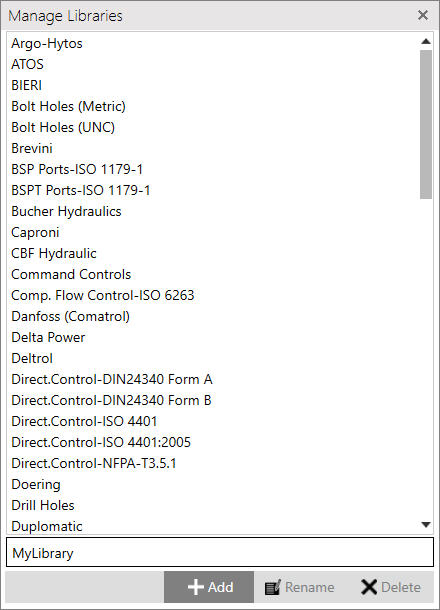
2. Enter the new library name in the text box provided below the Libraries List.
3. Click Add to add a new library.
A new library is added to the existing libraries.
The new library name displays in the Manager Libraries Listing.
Note:
If the unit setting is Inches in the Options command, then the library is added to the inch libraries (InchVESTMDToolsLibrary.mdb).
If the unit is set to MM in the Options command, then the library is added to the metric libraries (MMVESTMDToolsLibrary.mdb).
When the library is added, you can add cavities/footprints into the library using the Add option in the Cavity/Footprint section.
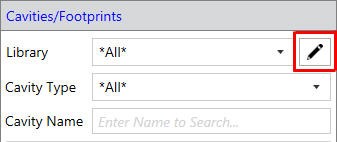
Added library automatically comes in Library dropdown in the Cavity/Footprint section.