
Import Cavity Data
Import cavity data from an existing cavity while creating a new cavity or updating an existing cavity.
1. Select Library in which you want to add a cavity/footprint.
2. Click Add.
3. The Selected Cavity/Footprint section displays with empty fields.
4. Click Import Cavity Data option at the bottom of Selected Cavity/Footprints section.
The Import Cavity/Footprint Data dialog box displays.
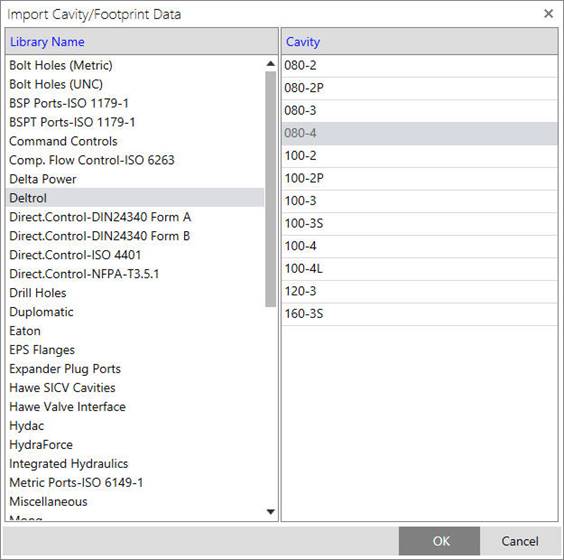
5. Select Library Name from the Library Name list.
6. Select a Cavity from the Cavity list.
7. Click OK.
8. The Import Cavity/Footprint Data dialog box closes. Selected cavity data gets populated in the Selected Cavity/Footprint section.
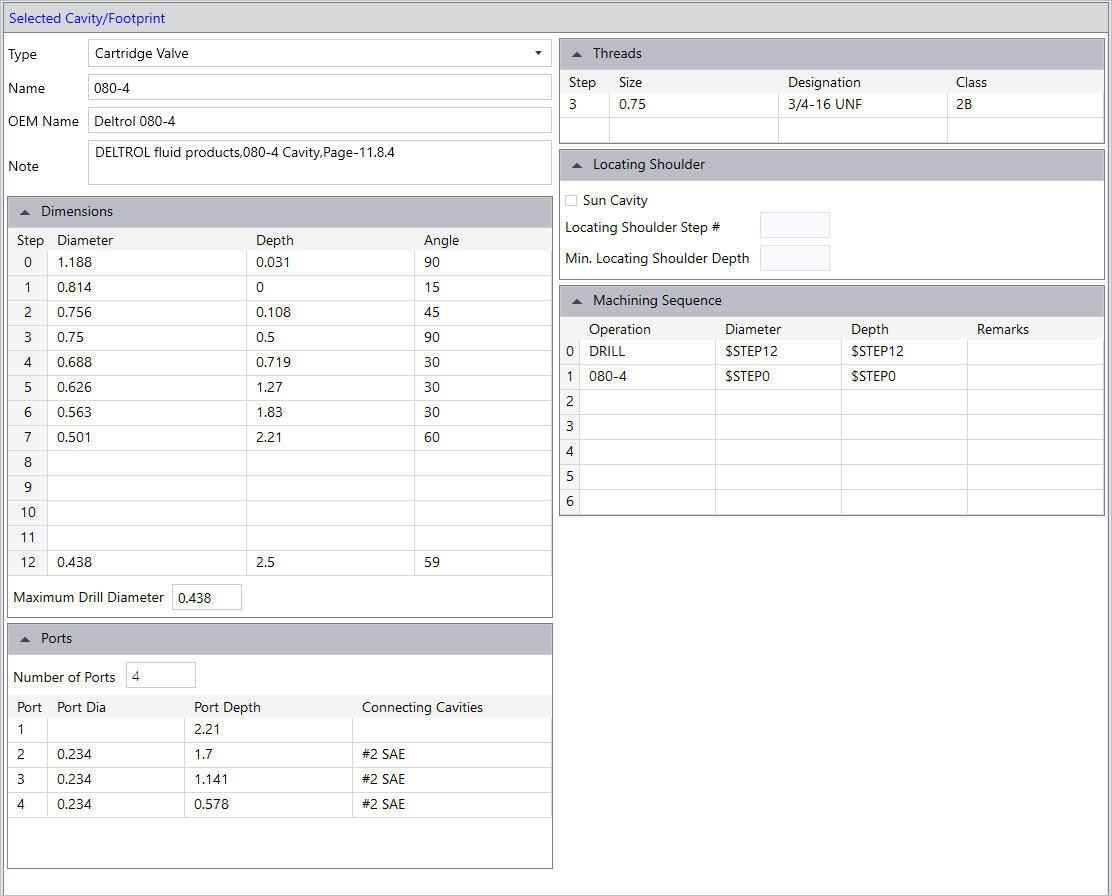
9. Modify cavity data, if required.
10. Click Save.