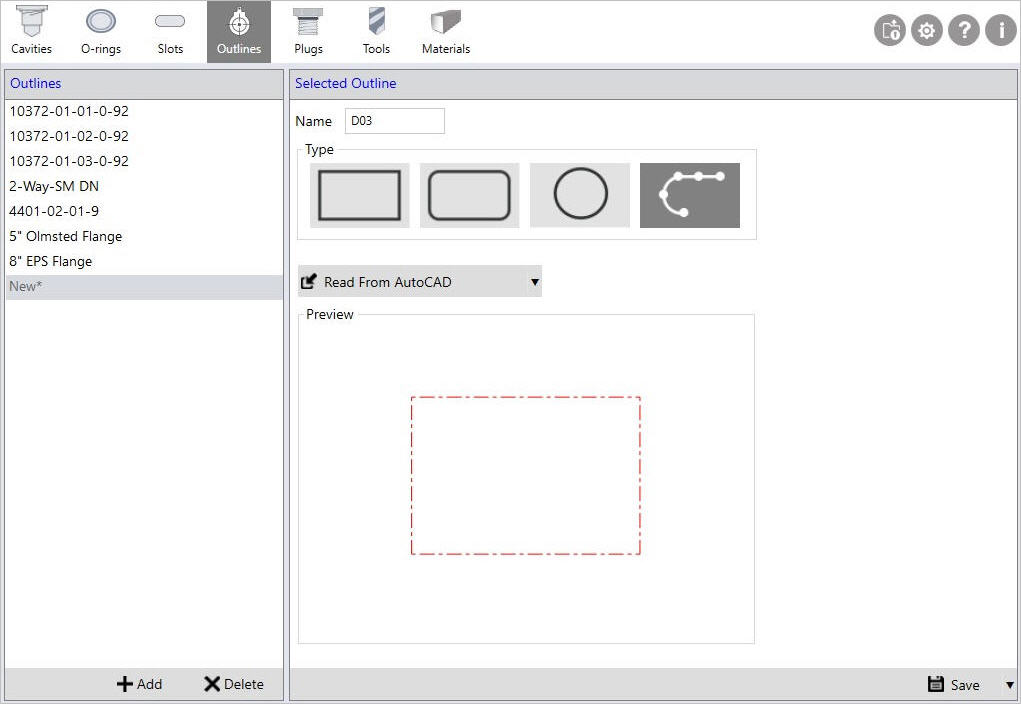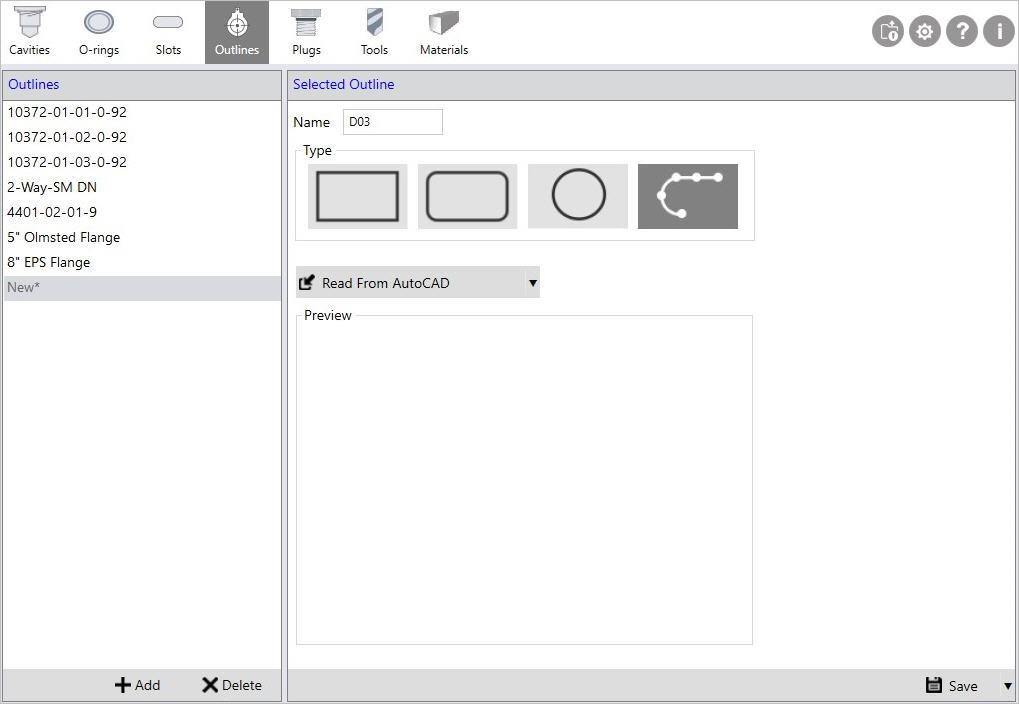
Read Outline Data from AutoCAD
1. Click Add to add new outline.
2. Enter Outline Name.
3. Select the Outline Type as Custom.
4. Open the AutoCAD drawing that has the envelope design to be imported into MDTools®.
5. Click the Read from AutoCAD option.
The Read Outline dialog box displays in the AutoCAD drawing window.
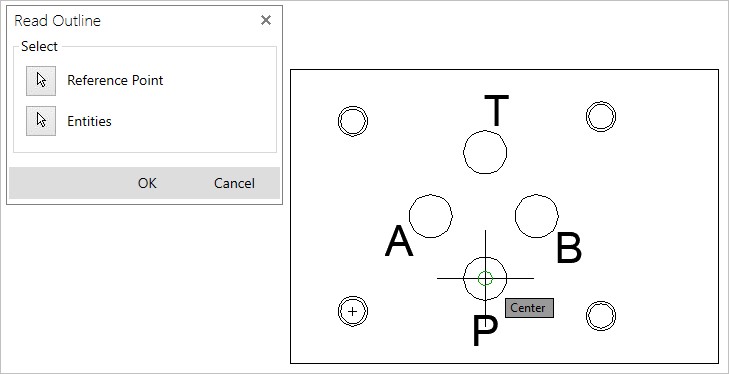
6. Reference Point option gets selected and click on the AutoCAD drawing window.
This ensures that the focus is changed.
7. Select a Reference Point.
8. Select the envelope entities in the AutoCAD drawing.
9. Press Enter or the Spacebar to complete the selection.
10. Click the OK button.
The outline data imported and assigned to the selected envelope name.
11. Click Save to update the existing or Save As to save as new outline.
Note:
MDTools Library Manager 2020 supports AutoCAD 2010 and higher.