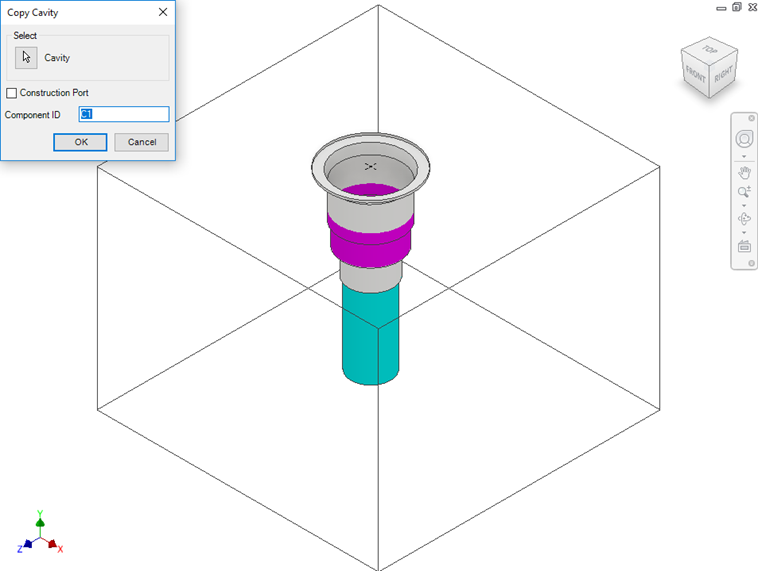
Create a copy of an existing cavity/footprint on the manifold.
All parameters including the connectivity information are copied to the new cavity. You can connect the new cavity to either one or two existing cavities on the block.
1. MDTools i2025 ribbon > Insert panel > Copy drop-down > Copy
The Copy Cavity dialog box displays.
2. Select the cavity you want to copy.
3. Enter the component ID for the new cavity/footprint.
4. Select the Construction Port checkbox to use the new cavity as a construction port.
MDTools® automatically assigns the component ID when you select this option.
5. Click OK.
The Specify Cavity Location dialog box displays.
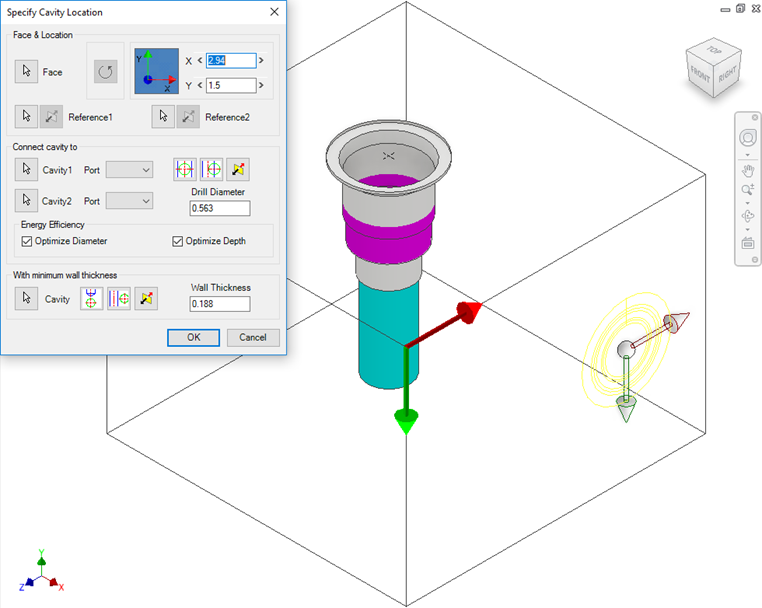
6. Select the point on the manifold face where you want to insert the cavity.
MDTools display a top-view preview with center point and X and Y axis arrow indicator of the selected cavity at the selected point on the manifold.
7. Enter the X and Y distance from the block origin.
Or
Drag the center point to move cavity along any axis.
Or
Drag the X and Y axis arrow to move cavity along a single direction.
8. Click OK.
MDTools creates a copy of the selected cavity at the specified location.
Note
If a cavity on a footprint is selected, then the complete footprint is copied.
When a footprint is copied, the primary cavity on the footprint is created at the selected location.
If cavity has undercut, it is copied along with it. If cavity has slot, the Copy Slot option is available.